Start with fixed finishes
Note what will stay: roof, flooring, counters, stone, brick, windows or large furniture. Choose colors that sit comfortably beside those materials.
Upload a kitchen photo, mark your cabinet fronts, and preview paint colors for free. Compare two-tone cabinets, save three previews, and download without signing in.
Explore by surface
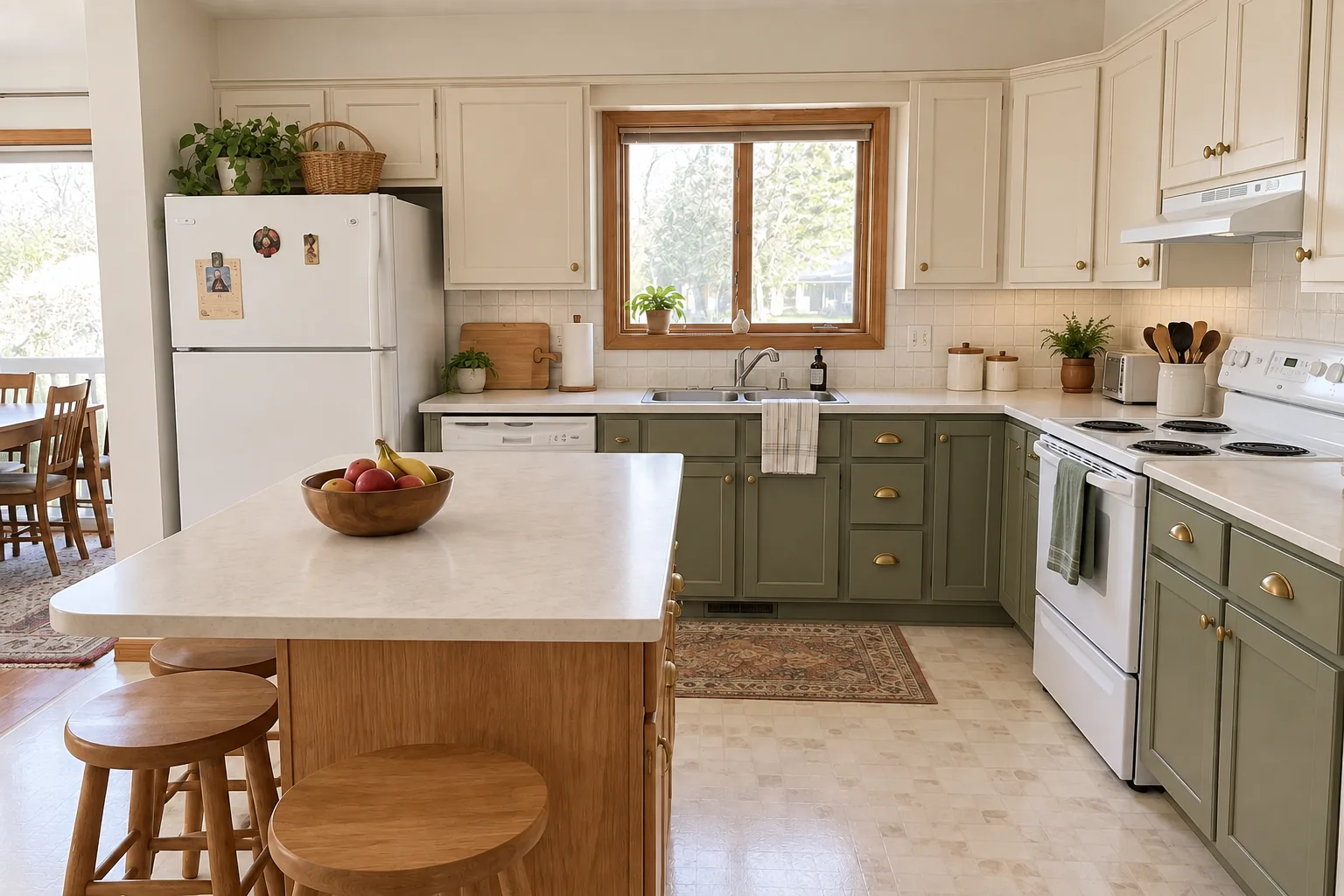
Browse original AI-generated concept images by project type, then try the matching visualizer with your own photo.
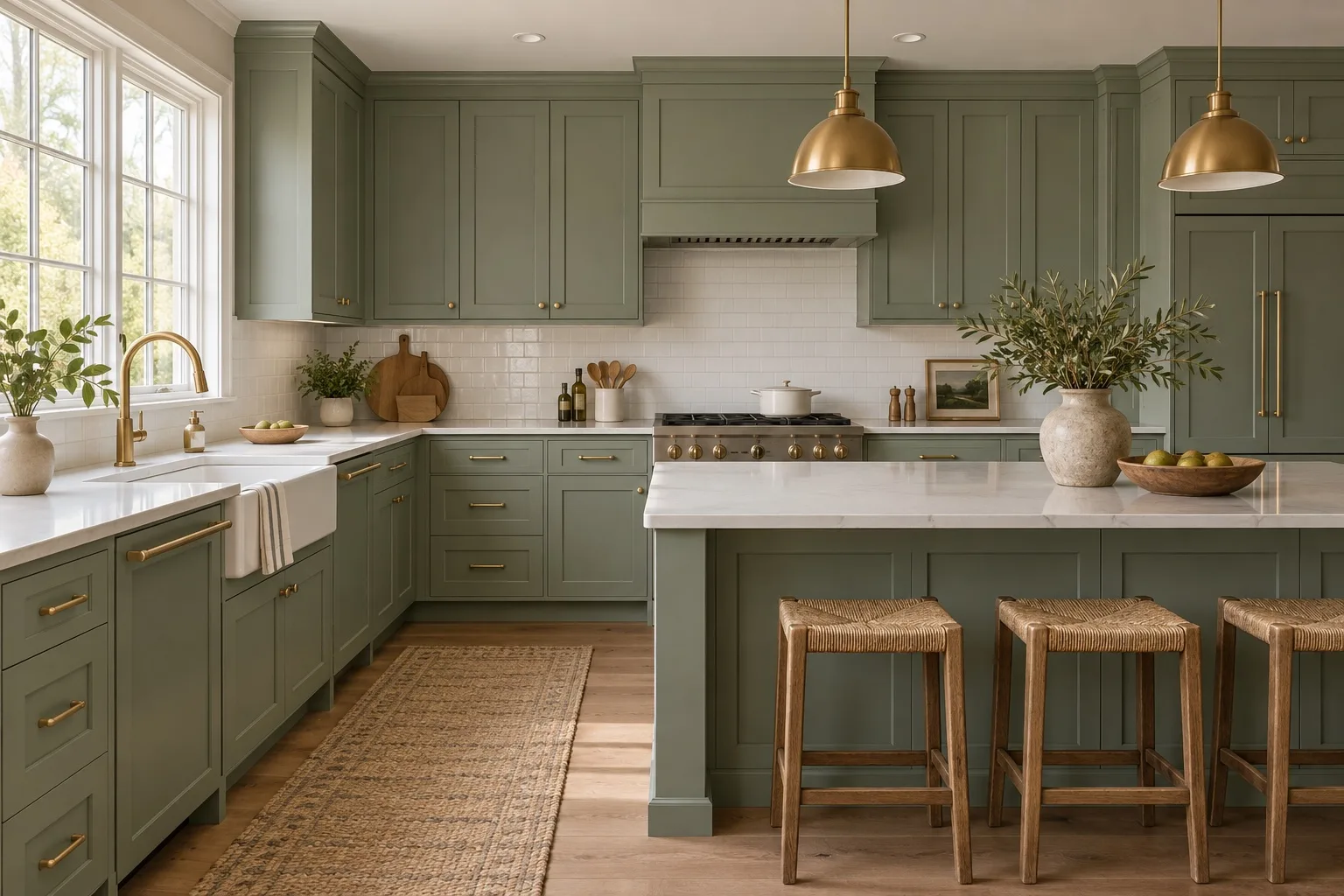
Compare a cabinet color against counters, backsplash, hardware and daylight in the same view.
Try this project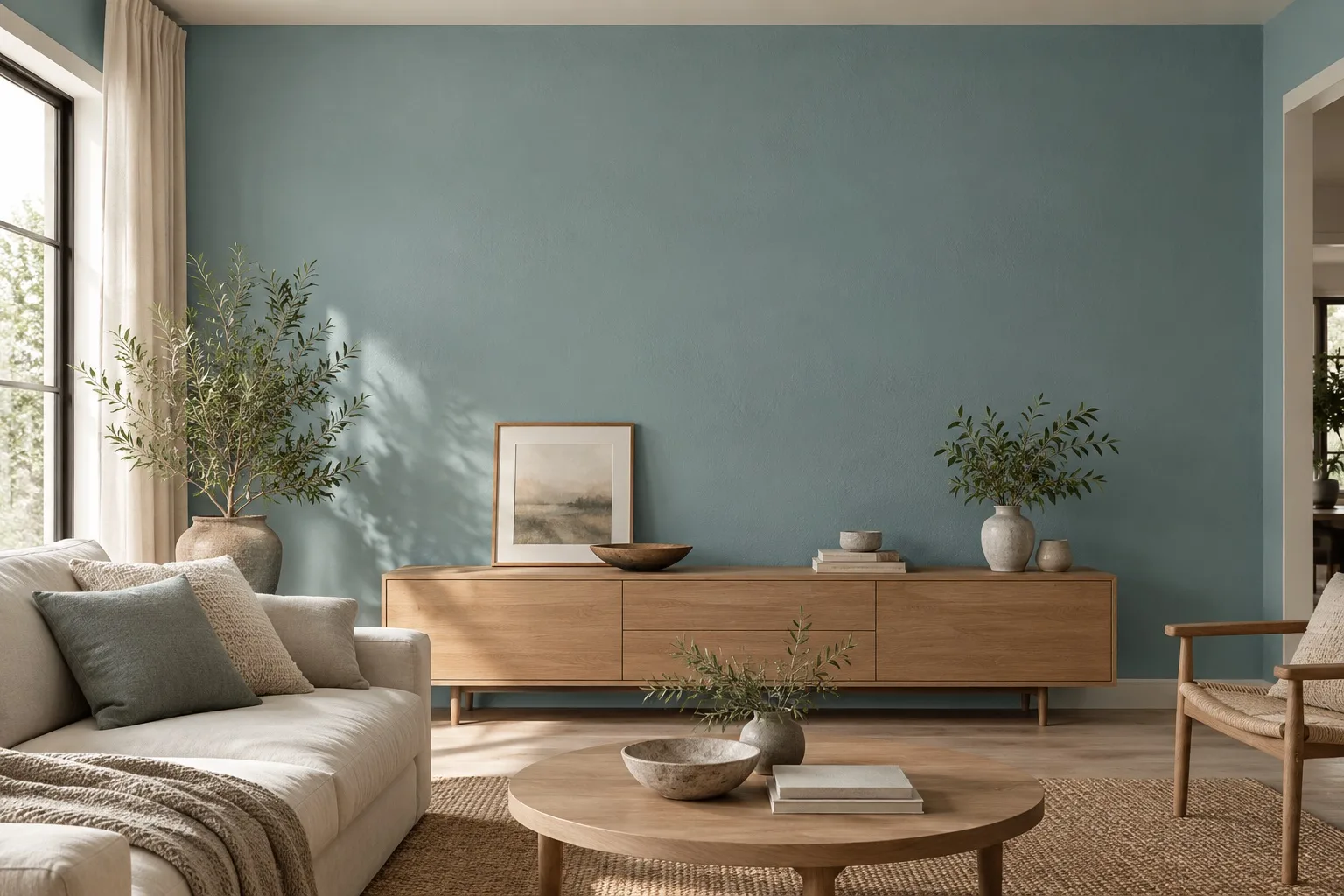
Use the furniture, window light and wood tones around a wall to judge whether a color feels balanced.
Try this project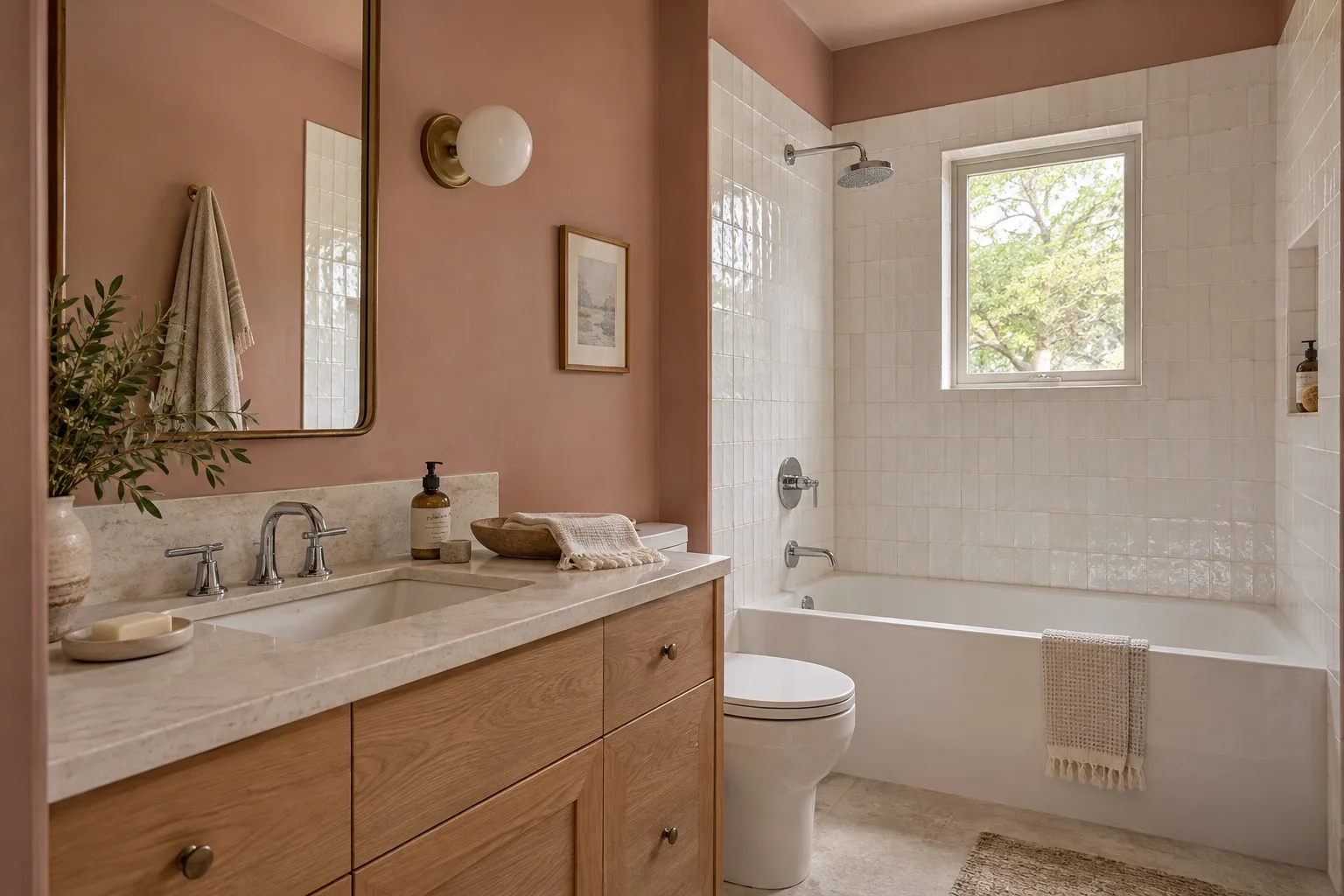
Consider painted walls beside tile, vanity wood and stone so neighboring finishes work together.
Try this projectNote what will stay: roof, flooring, counters, stone, brick, windows or large furniture. Choose colors that sit comfortably beside those materials.
Choose one main surface color, then compare trim and a smaller accent such as a cabinet island or entry door. Change one surface at a time to see what drives the result.
Compare the preview with physical samples near the target surface in morning, afternoon and evening light. Check both sun and shade for exterior work.
Curated design concepts illustrating color balance and material harmony under natural lighting. Because monitor calibration and room orientation (North vs. South light) alter color perception, pair digital designs with physical swatch tests in your home.
How it works
Select a JPG, PNG or WebP photo, or start with the practice image. Include the countertop, backsplash and floor so you can judge the whole palette.
Draw around the surfaces you want to recolor. Add separate regions for separate doors and exclude handles, glass and anything that should retain its original color.
Choose a swatch or enter a hex color, adjust the color strength, and download a PNG of your preferred options.
EXPLORE THE DETAILS
Use these palette directions as starting points. Compare each color with your existing countertop and floor in the preview, then check a physical sample in your kitchen.
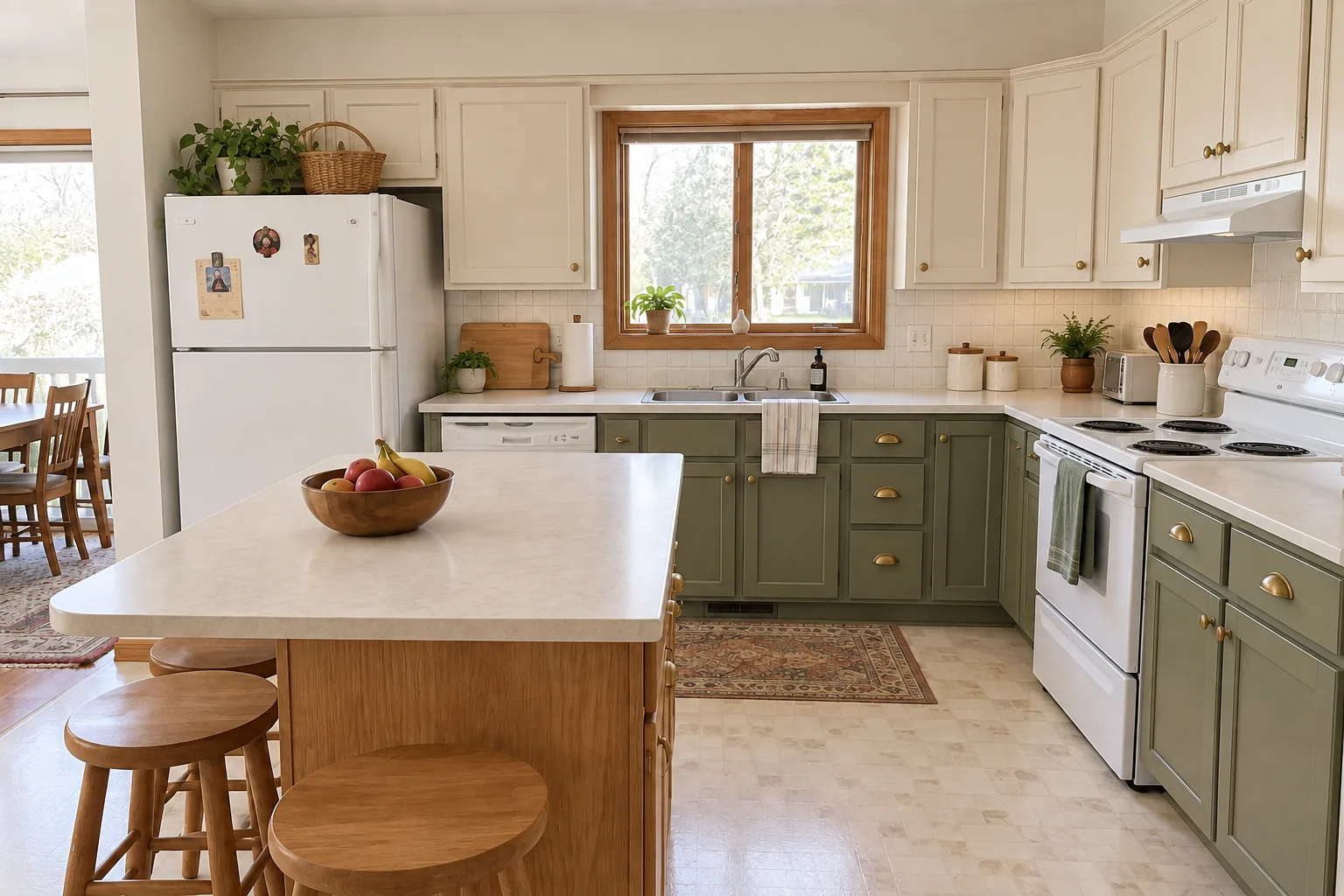
Try cream, oatmeal or taupe beside warm wood and stone. Check whether the cabinet color makes an existing white countertop appear cooler or warmer.
Compare sage, olive and eucalyptus with wood flooring or brass handles. Reduce the color strength if the first pass hides too much of the original shading.
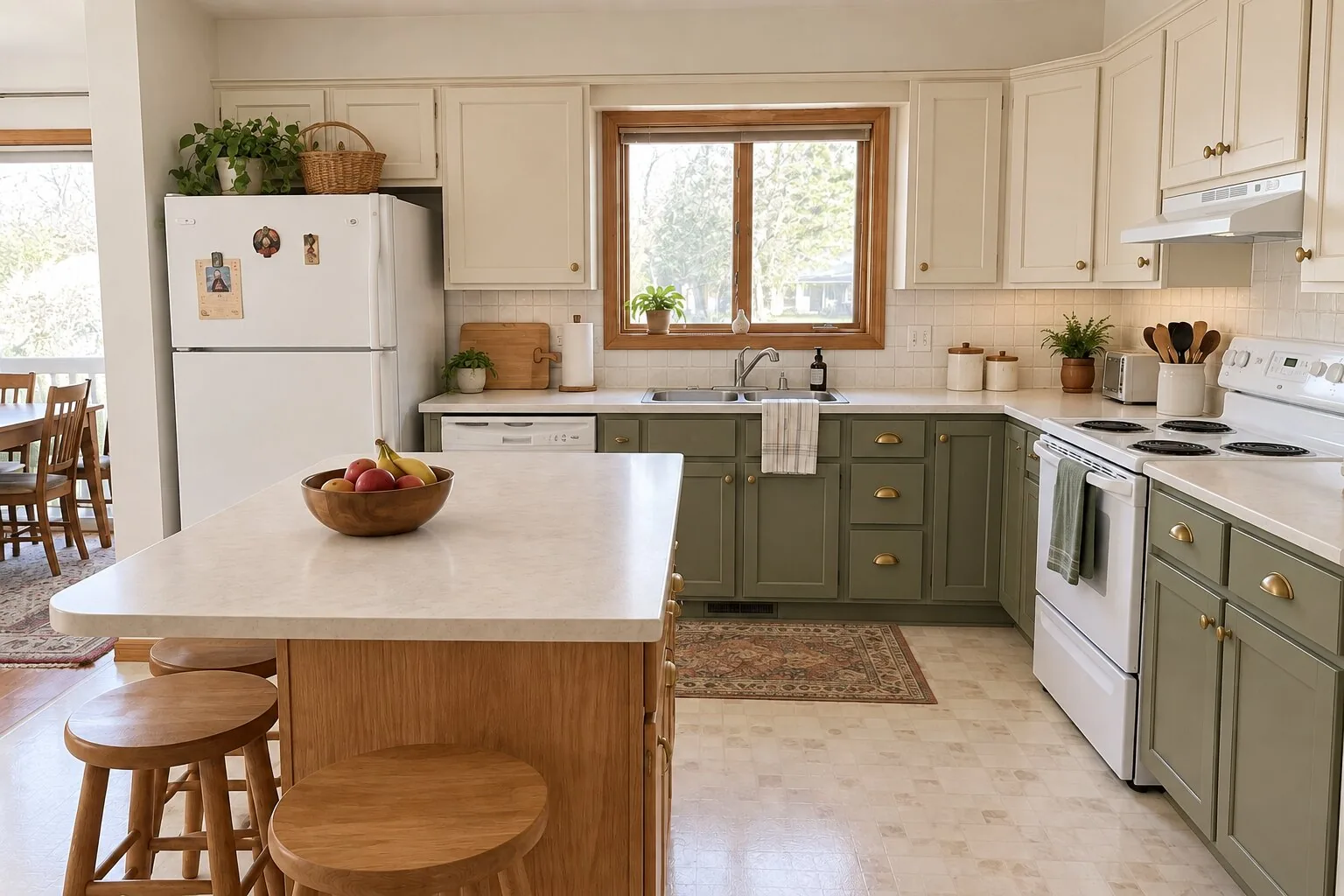
Select only the island or lower cabinets to explore navy, charcoal or forest green. Leave upper cabinets unselected to compare a two-tone direction with the existing finish.
START WITH A BETTER PHOTO
Try the tool
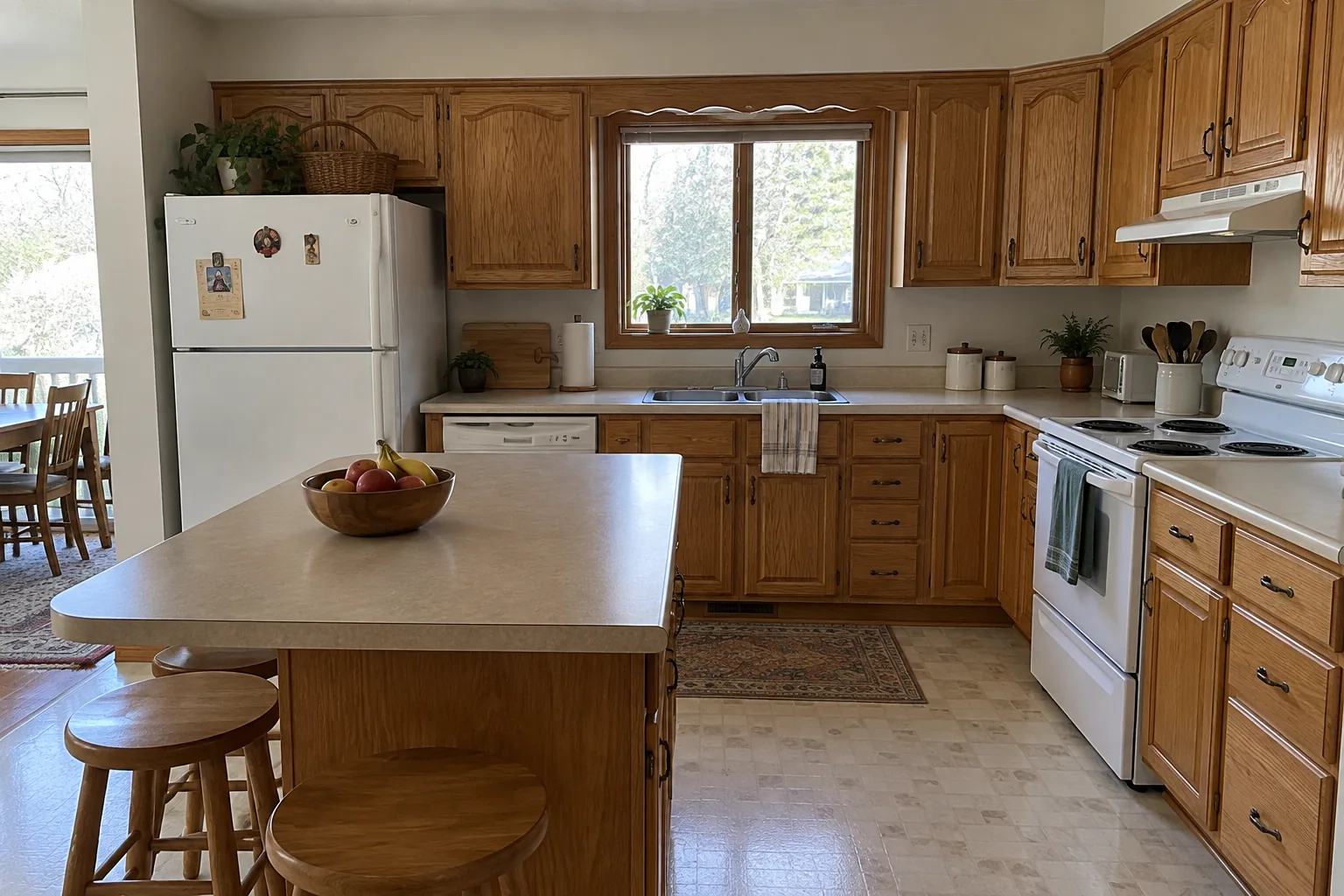
Select the cabinet fronts on your kitchen photo. Compare colors while the countertop, floor and appliances outside the selection stay unchanged.
Manual color previews stay in this browser. AI detection and rendering upload your photo for processing.
Click around one surface to mark its corners. Click the first point, double-click, or use Close region to finish; the selected area stays outlined while you preview colors. Add separate regions for other doors or walls, and exclude windows or objects that should keep their original color.
Keyboard: focus the image, use arrow keys to move the crosshair (Shift for larger steps), Space to add a corner, Enter to close, Escape to cancel.
Marked areas on photo: 6
#93A18B
Upload your photo and confirmed region for an AI color concept. Compare the result with your original photo; generated details may change.
Sign in to generateThe preview helps you compare ideas on the same photo. Lighting, surface texture and your screen affect color, so check a physical sample on the surface before buying.
For ideas that go beyond cabinet color, explore a broader kitchen redesign with cabinets, counters, lighting and layout concepts.
MORE TO EXPLORE
 Kitchen Cabinet Paint CalculatorEstimate exact primer and enamel gallons for your cabinet doors, drawers, and frames.Explore this toolAI Kitchen DesignExplore cabinets, counters and the overall look of your kitchen.Explore this tool
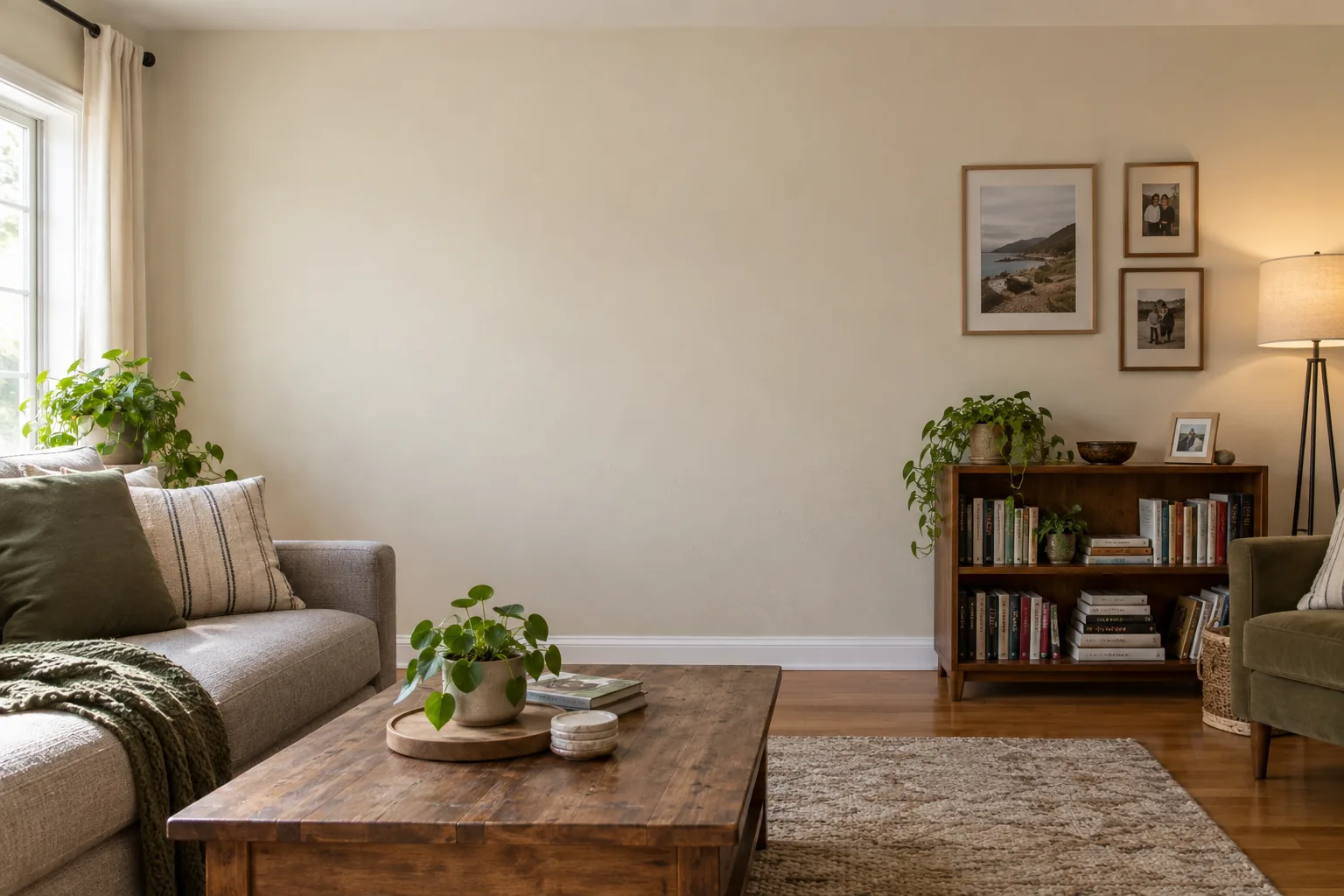 Wall Color VisualizerCompare the surrounding wall color with a local photo preview.Explore this tool
Questions
Choose a kitchen photo, mark cabinet areas, and preview screen colors on those selections. Areas outside your selection remain as shown in the photo; the tool does not change the kitchen layout or replace cabinet doors.
Yes. Include the countertop, backsplash and floor in the photo so they remain visible as context while you compare cabinet color options.
Yes. Mark one cabinet area, apply a color, then mark another area and try a different color. This lets you compare combinations such as darker lower cabinets with lighter upper cabinets.
Choose a listed paint color or enter any HEX value in the preview.Exclude handles, hinges, and appliances when outlining cabinet doors so your brass, matte black, or chrome hardware stays visible against the new cabinet color.
You can draw cabinet regions manually and exclude areas such as hardware or glass. Review the outline before comparing colors, especially where cabinet edges are partly hidden.
Yes. You can upload your kitchen photo, compare up to three saved cabinet color previews, and download a PNG image for free with no account required. Always test a physical paint sample on your doors before buying.
ONE PHOTO. A MORE CONSIDERED CHANGE.