
Start with a sample or photo
The sample includes a wall area so you can change colors immediately. Upload your own photo to compare paint with the furniture you already have.
Free paint & color tools
Preview paint colors on wall areas you mark in a room photo. Choose a paint color, compare options and download your shortlist. For AI wall materials and accent concepts, visit the Wall Texture page.
Manual color previews stay in this browser. AI detection and rendering upload your photo for processing.
Click around one surface to mark its corners. Click the first point, double-click, or use Close region to finish; the selected area stays outlined while you preview colors. Add separate regions for other doors or walls, and exclude windows or objects that should keep their original color.
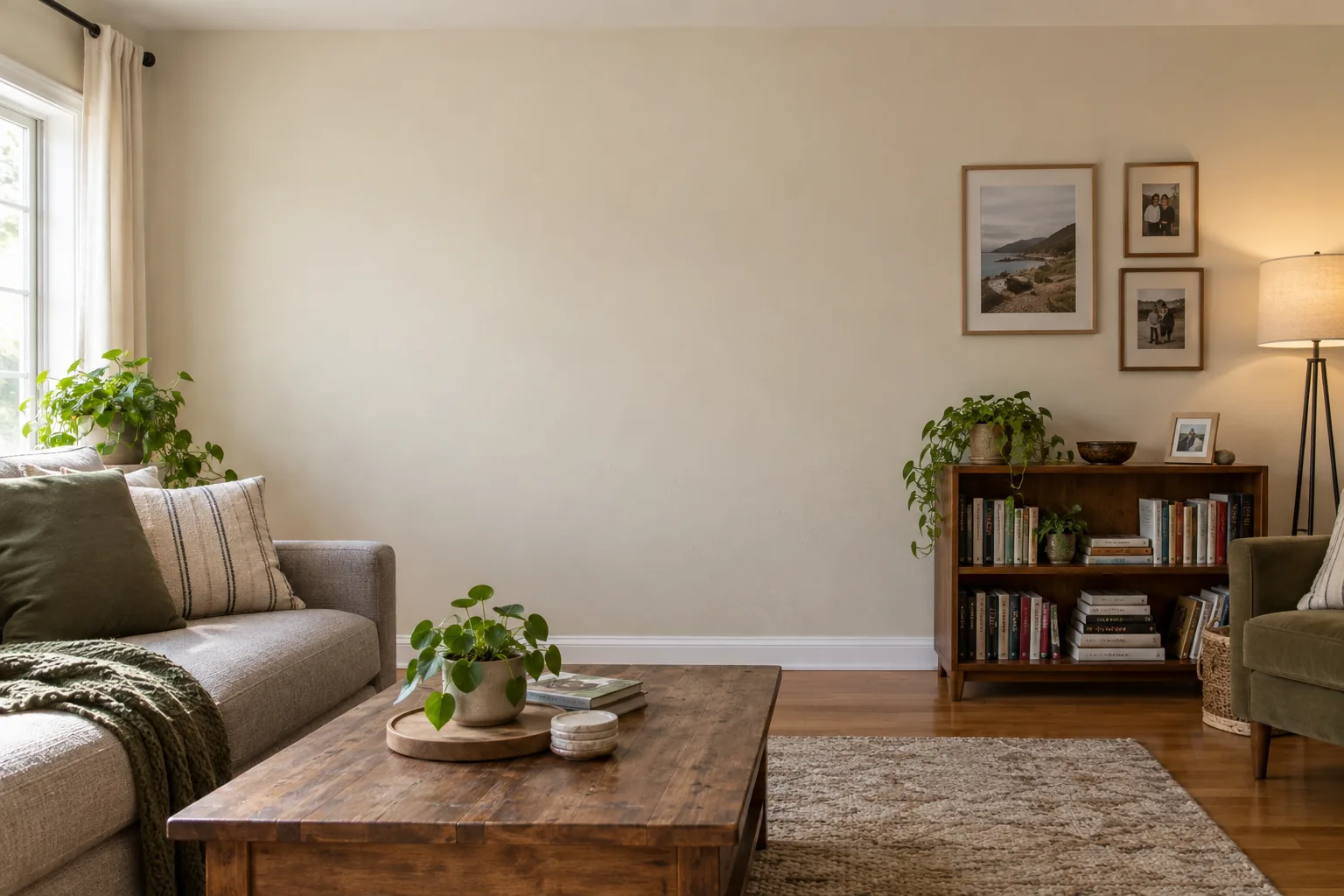
Keyboard: focus the image, use arrow keys to move the crosshair (Shift for larger steps), Space to add a corner, Enter to close, Escape to cancel.
Marked areas on photo: 1
#93A18B
Upload your photo and confirmed region for an AI color concept. Compare the result with your original photo; generated details may change.
Sign in to generateThe preview helps you compare ideas on the same photo. Lighting, surface texture and your screen affect color, so check a physical sample on the surface before buying.
Choose a color and give it a role. Your palette will follow you into the preview.
See your palette on a photo
The sample includes a wall area so you can change colors immediately. Upload your own photo to compare paint with the furniture you already have.
Mark the wall corners and finish the area. Use exclusions to protect objects, then select a paint color or a saved palette.
Save up to three previews, switch to the original and download images. Download the color list too so the paint names stay with your shortlist.
A straight view with a visible wall is easier to mark. Keep curtains, furniture and wall art outside the painted area or add an exclusion around them.
Use the same marked wall for several colors. Check whether the wall, floor, sofa and trim still feel balanced in each preview.
The preview helps compare ideas while retaining the photo’s shading. Use a physical sample to decide the final color and finish.
Yes. Manual selection, color previews, comparisons and downloads work in your browser. AI surface detection and realistic repainting are optional.
AI can identify paintable surfaces in a photo; review the outlines before recoloring. You can also mark or correct regions manually.
Yes. Brand colors saved in your palette can be used in the exterior and cabinet previews, and your color list can be downloaded alongside a paint quantity plan.
Compare materials, palettes and practical choices in these guides, then return to the tool with a clearer brief.
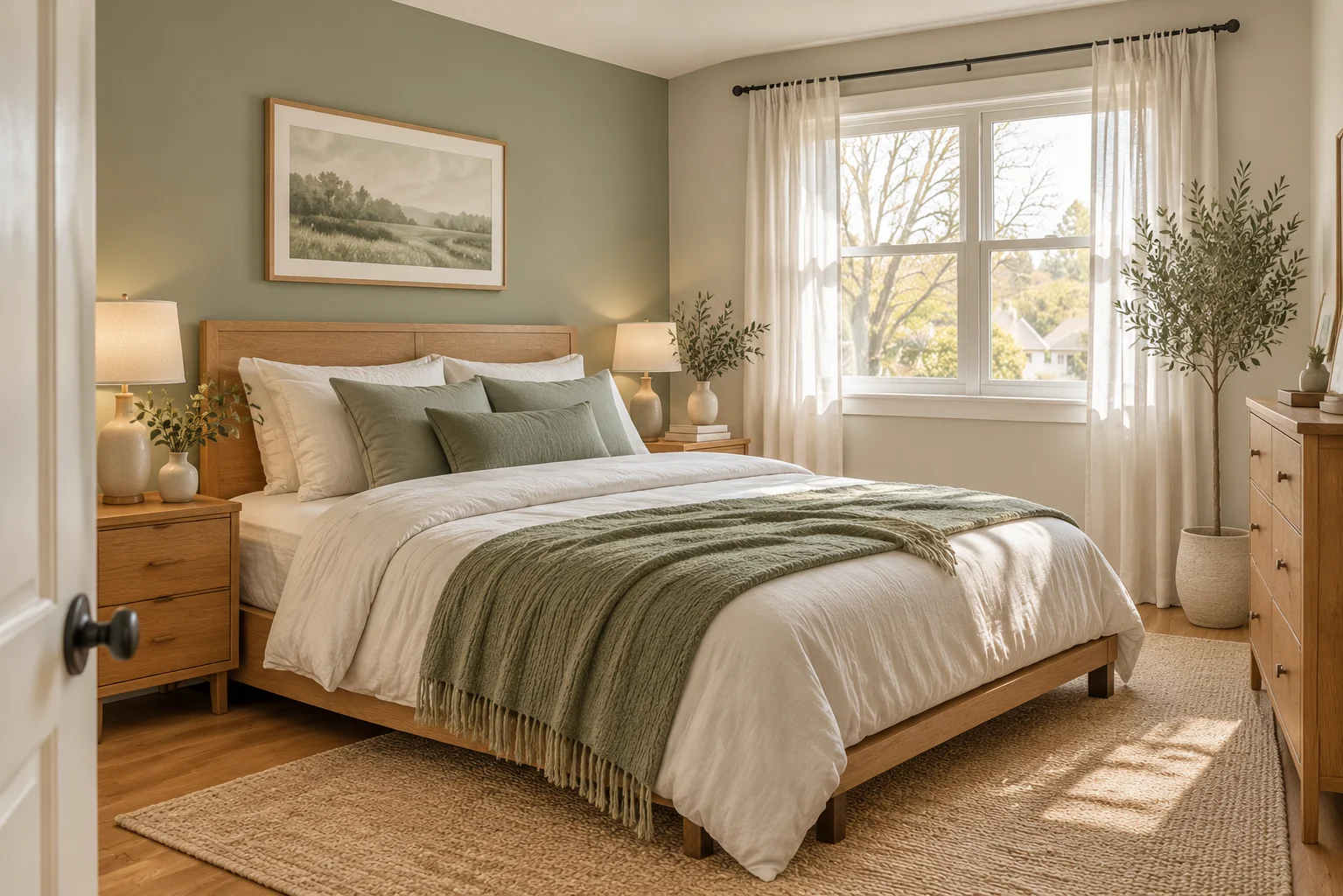
Compare sage green with light wood, darker wood, white and textiles. Build a bedroom palette and try a direction on your photo.
Read the guide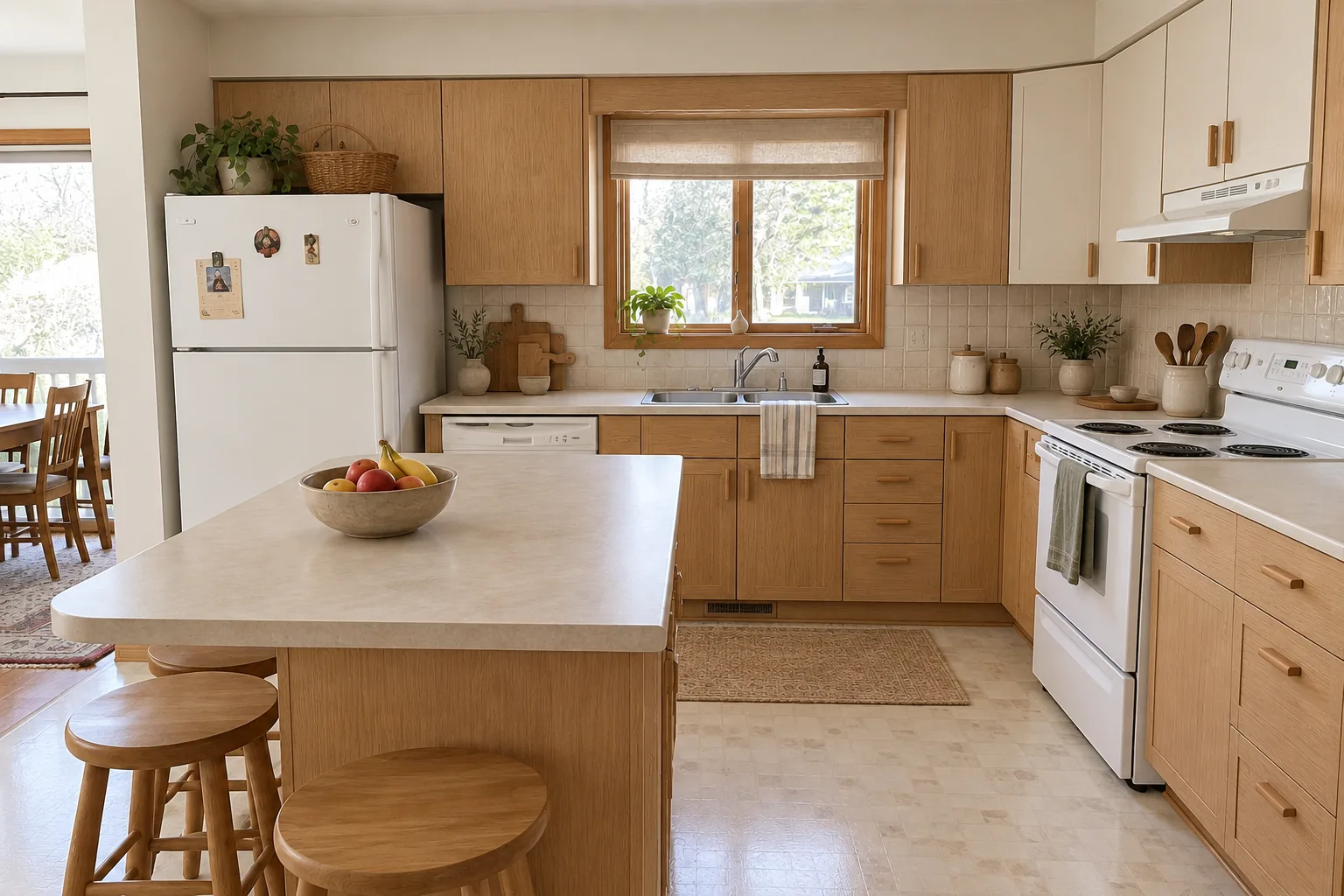
Compare contemporary kitchen combinations of cabinet fronts, worktops, backsplashes and floors before trying an idea on your photo.
Read the guide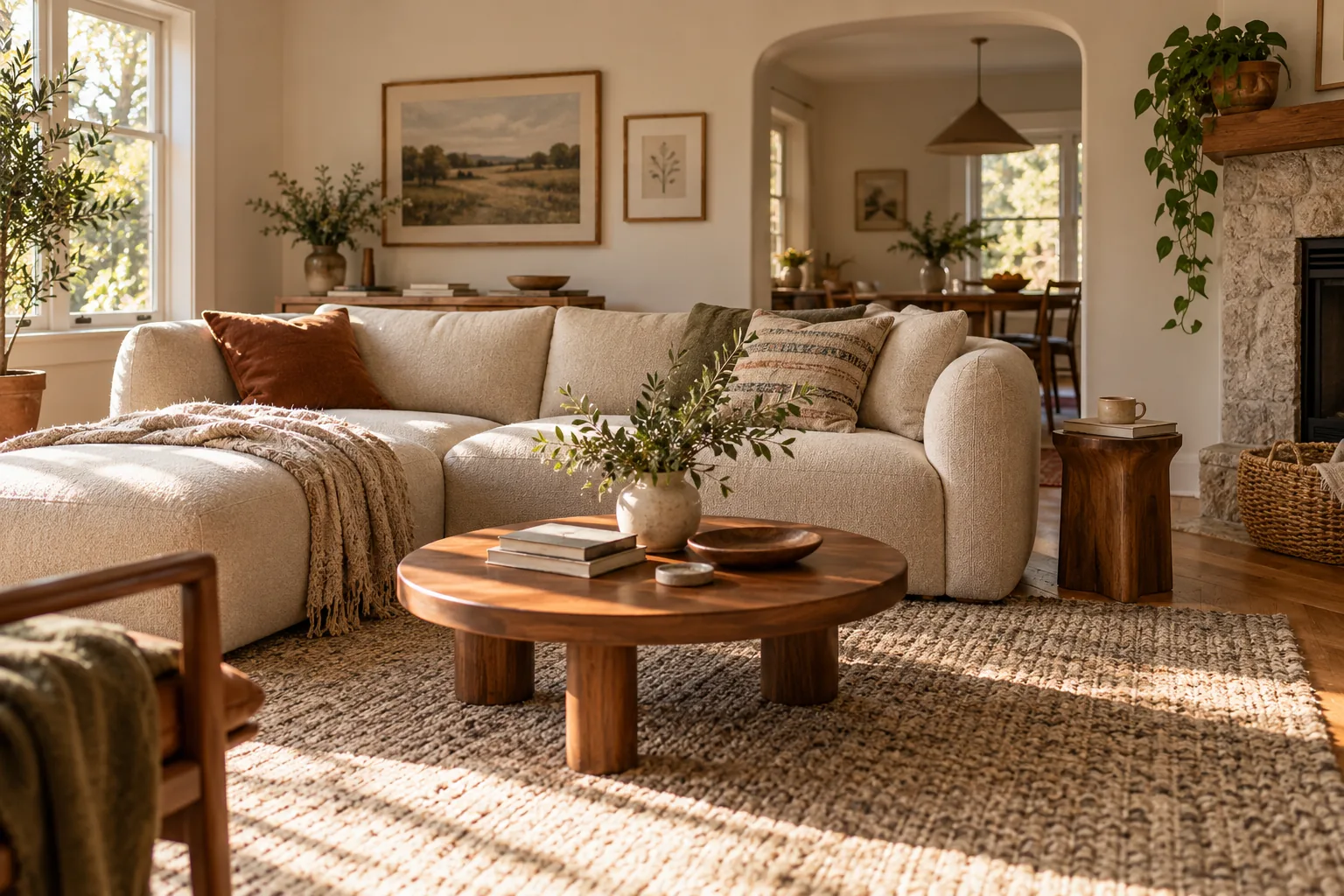
Explore a minimalist living room through useful furniture, clear circulation and natural materials before trying a direction on your photo.
Read the guide