Paint color
Describe a color family, mood, or contrast for a main wall. Mention nearby trim and furniture you want to keep in view.
Keep the room as it is. Mark one wall, protect the windows and furniture, and compare three color directions before trying an AI material makeover.
Manual color previews stay in this browser. AI detection and rendering upload your photo for processing.
Click around one surface to mark its corners. Click the first point, double-click, or use Close region to finish; the selected area stays outlined while you preview colors. Add separate regions for other doors or walls, and exclude windows or objects that should keep their original color.
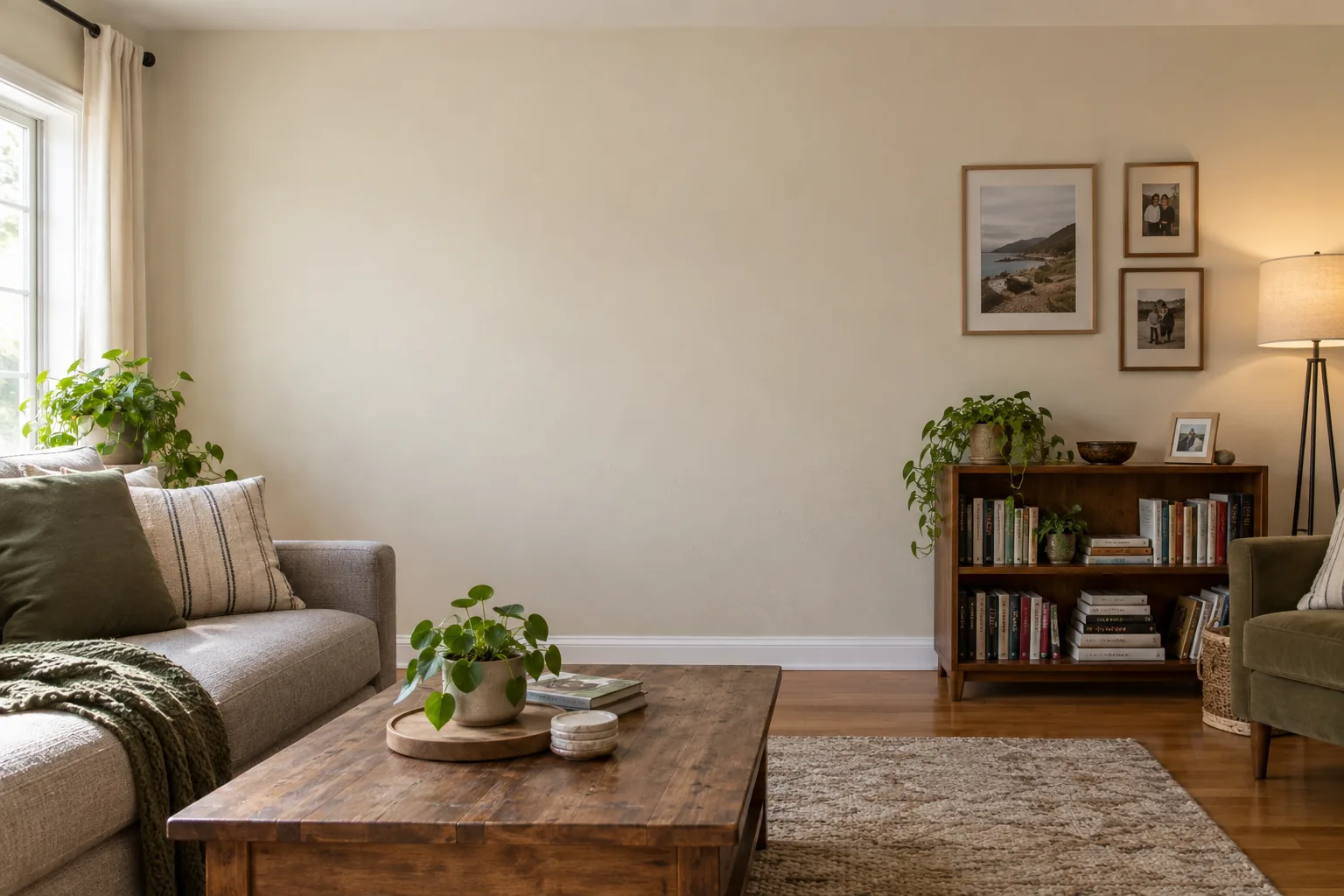
Keyboard: focus the image, use arrow keys to move the crosshair (Shift for larger steps), Space to add a corner, Enter to close, Escape to cancel.
Marked areas on photo: 1
#93A18B
Upload your photo and confirmed region for an AI color concept. Compare the result with your original photo; generated details may change.
Sign in to generateThe preview helps you compare ideas on the same photo. Lighting, surface texture and your screen affect color, so check a physical sample on the surface before buying.
Test paint, limewash, wallpaper, wood slats, and textured wall finishes on your real space.
Use an evenly lit photo showing the target wall and nearby furnishings. Strong shadows can make finish comparisons harder.
Name the wall to change and specify paint, limewash, wallpaper, or wood slats. Ask to retain trim or openings when needed; confirm actual colors with samples.
Choose a style, add your requirements, then generate. Compare the result with the original photo, especially openings and furniture placement. Adjust one requirement at a time before generating another version.
Digital redesigns provide layout and aesthetic direction. For construction or contractor orders, verify room dimensions on-site and confirm physical material swatches under your home's lighting.
Check the credit cost shown before generating. You can view examples without spending credits.
See examples and explore this tool’s usesThis example shows a wall and material direction you can explore with the Wall & Paint tool. Upload your own room photo to create a concept around your space.
Curated interior color rendering. Lighting temperature (2700K warm vs. 4000K neutral) affects appearance; test physical paint swatches in your space.
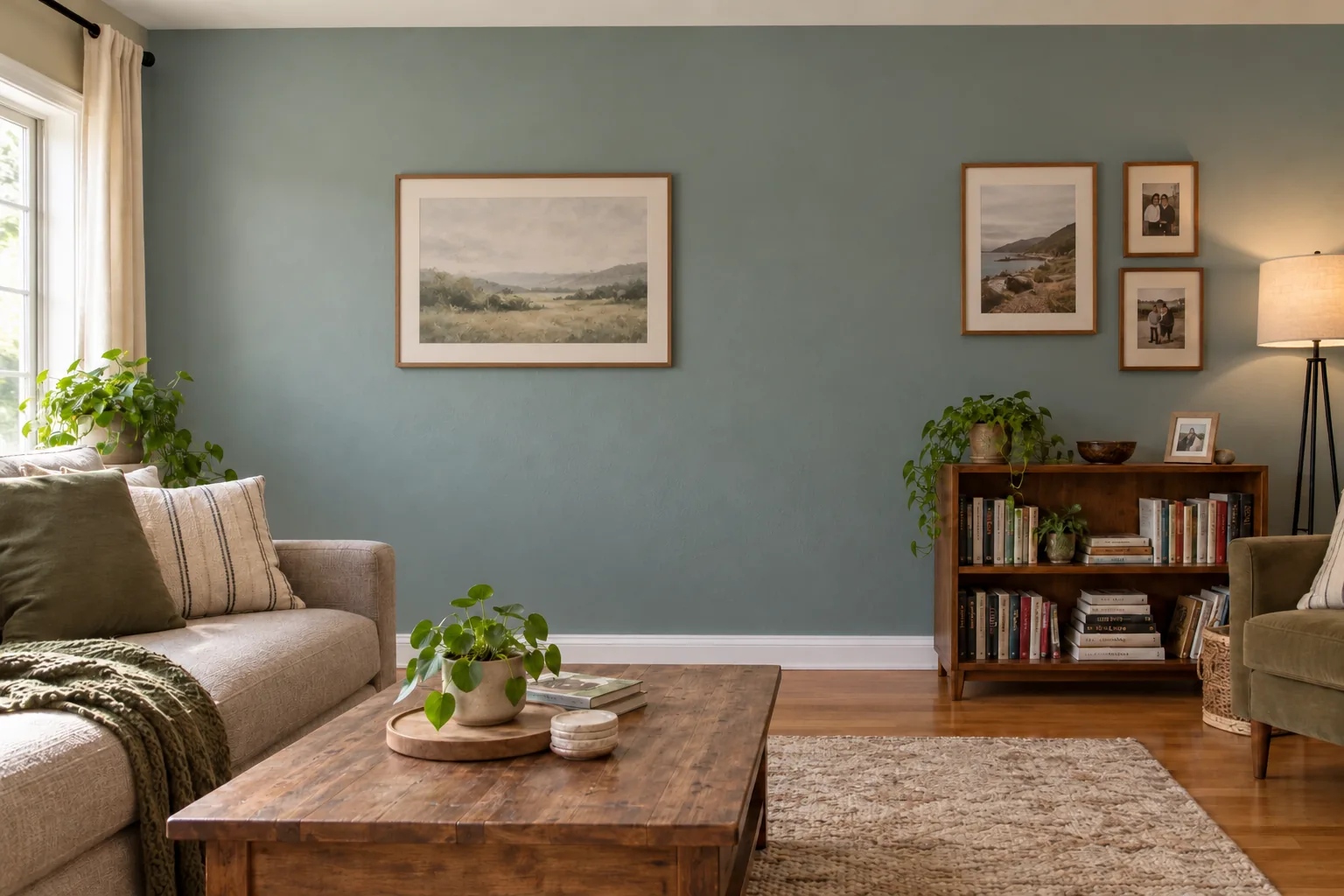
Describe a color family, mood, or contrast for a main wall. Mention nearby trim and furniture you want to keep in view.
Explore a softer, layered wall finish. Include the room lighting and surfaces that should remain unchanged in your request.
Try a feature wall with wallpaper or wood slats. Identify the wall and ask to preserve doors, windows, and trim.
Studio is for exploring a visual direction. Browse real brand colors, compare a selected shade on a photo, or find close paint matches before choosing a physical sample.
Studio explores overall space aesthetics and lighting harmony. For paint purchases, map your favorite shade to standard brand swatches and test a liquid sample pot on your wall.
Describe the target wall and list the trim, openings, furniture, and other details to retain. Review the generated image against your original photo, since an AI concept may still vary other details.
Select a curated shade from our paint visualizer and preview it directly onto marked surfaces in your room photo. For the most accurate finish, compare your favorite digital shades with physical color chips under natural daylight.