
Upload your room
Use an interior photo or design image with the walls, floor, and main furniture in view.
Room angles & walkthrough
Upload a room photo or design image. Generate a left, right, or upward view, compare it with the original, and connect two views into a short camera video.
Start with one room image. Choose a direction to photograph the same space from another angle.
Loading current price…
Sign in to upload your images and generate. Sign in
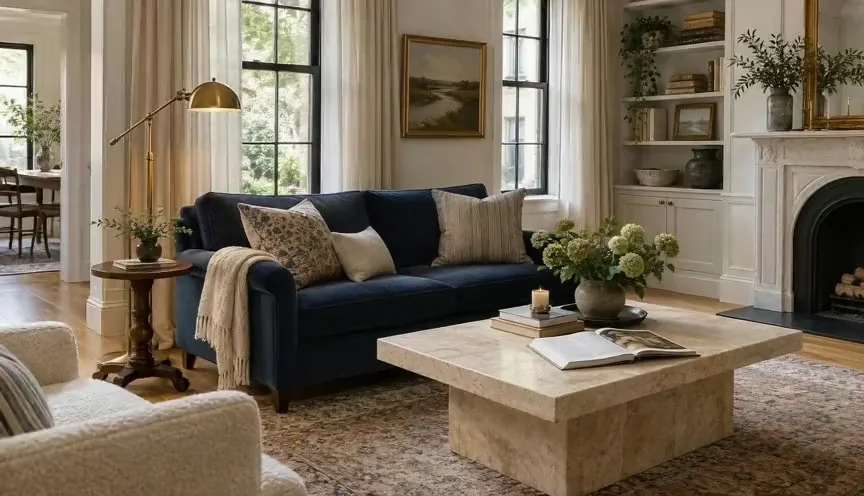
A room image is shown as an input example. Generate a direction to create your own alternate view.
AI infers newly revealed areas. Furniture and room details may vary between views.
Include the floor, walls, windows and main furniture. Keep the original design as your reference: new angles infer hidden areas, so review the furniture and architecture in every result.
Pre-generated Walkthrough Examples
Use the original and a generated angle, or upload two views of the same room. These reference frames come from an existing camera clip and illustrate how first and last frames relate.
Continuous motion starting from entryway console table, gliding down the hallway into the warm living room fireplace.
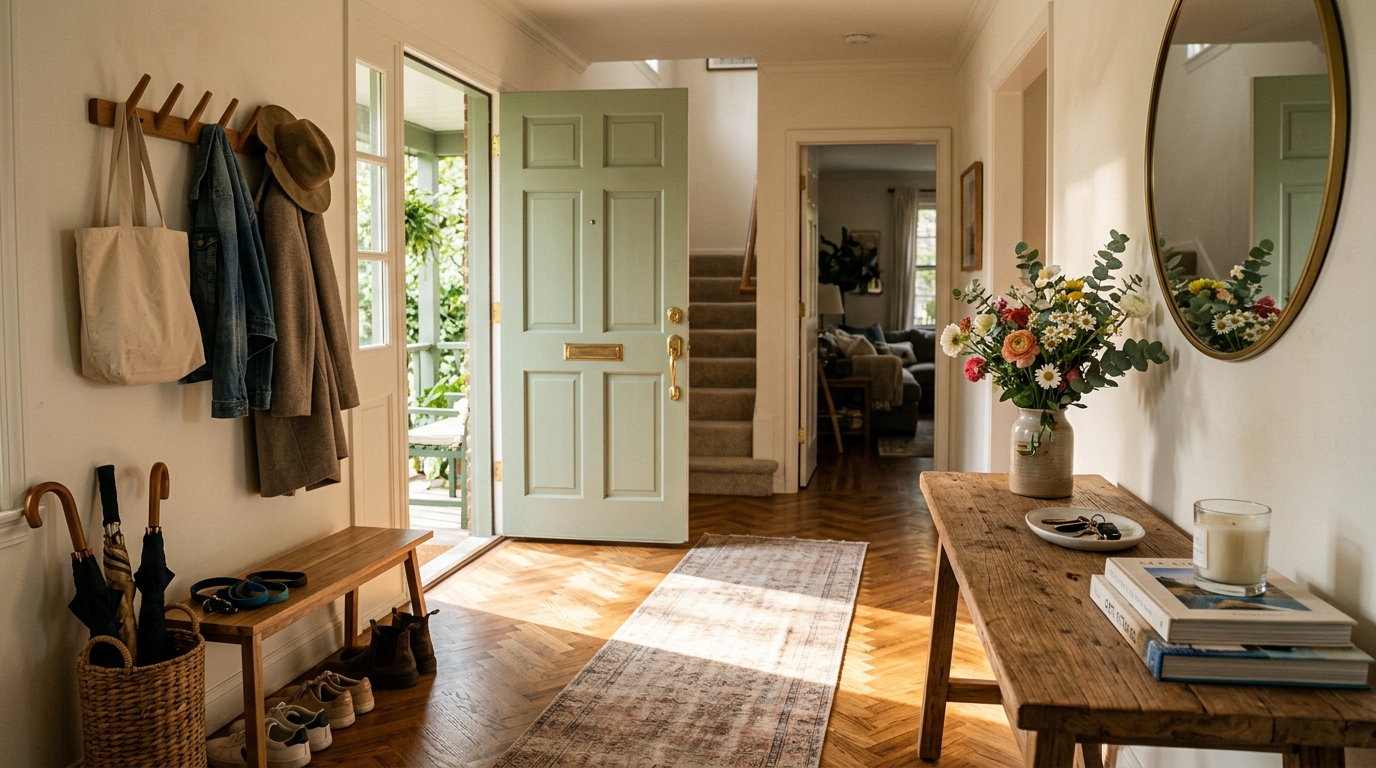
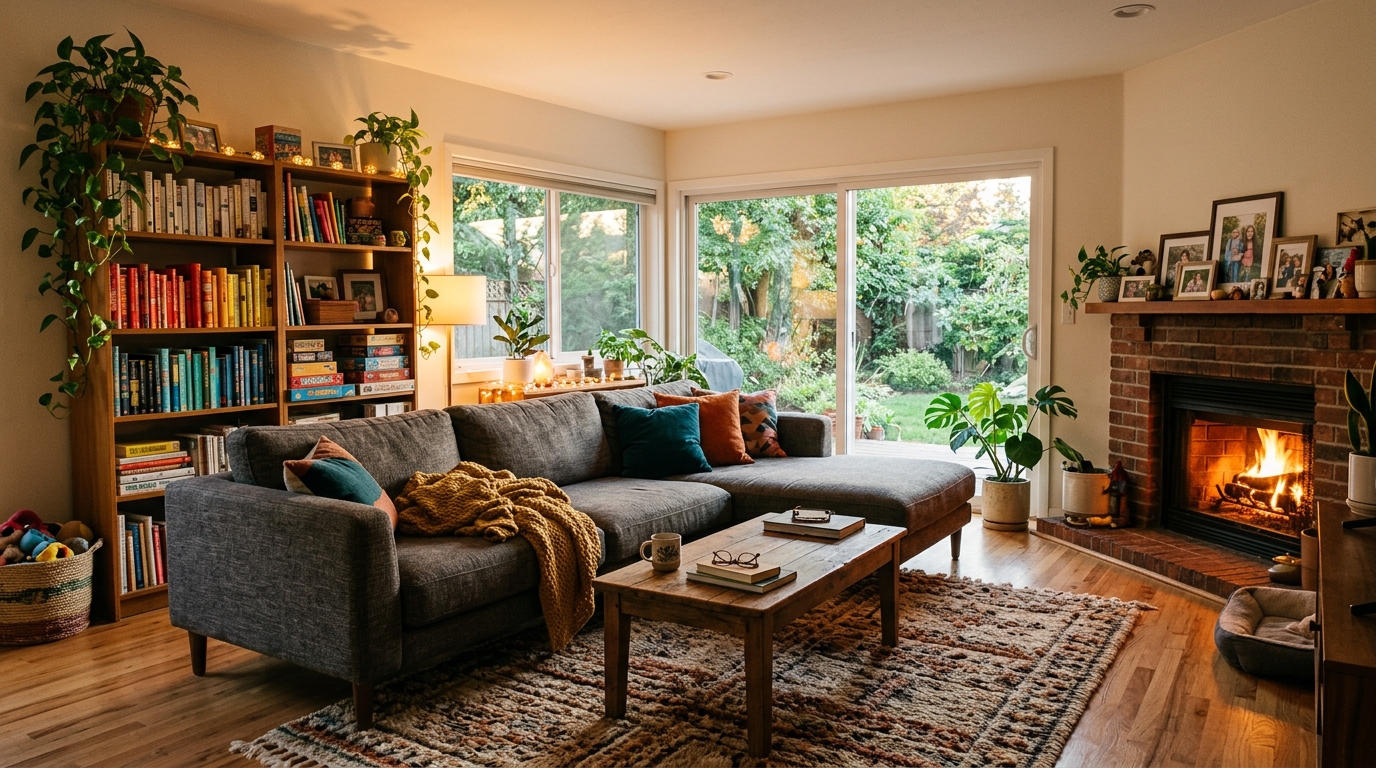
Use an interior photo or design image with the walls, floor, and main furniture in view.
Generate a left, right, or upward view. Switch between the original and your generated images.
Choose two views as your first and last frames, then generate and download a smooth camera clip.
Use a clear interior photo or room design image. A view showing the floor, walls, windows, and furniture gives more context than a close-up. JPG, PNG, and WEBP images up to 10 MB are suitable.
Yes. Choose left, right, or up and generate one angle at a time. Your completed views stay beside the original while you work on this page, and each image can be enlarged or downloaded.
Open the walkthrough video mode and upload the first and last frames, showing different angles of the same room. You can also use a generated view as a frame. Choose the duration and resolution, then generate the camera video.
The generation aims to keep the furniture, materials, and lighting consistent as the camera angle changes. Newly revealed areas are inferred, so details may vary. Review the images and video before using them to present a property or design.
The workbench shows the current price before you generate. Each image request creates one selected angle. Video pricing depends on duration and resolution. Viewing and downloading a completed result does not create another generation.