Paint color
Describe a color family, mood, or contrast for a main wall. Mention nearby trim and furniture you want to keep in view.
Délimitez un mur, excluez les fenêtres et les meubles, puis comparez plusieurs couleurs avant d’explorer un changement de matière par IA.
Les aperçus manuels restent dans ce navigateur. La détection et le rendu par IA envoient votre photo pour traitement.
Cliquez autour d’une surface pour en marquer les coins. Cliquez sur le premier point, double-cliquez ou choisissez Fermer la zone pour terminer. Ajoutez des zones pour les autres portes ou murs et excluez les fenêtres ou objets à conserver.
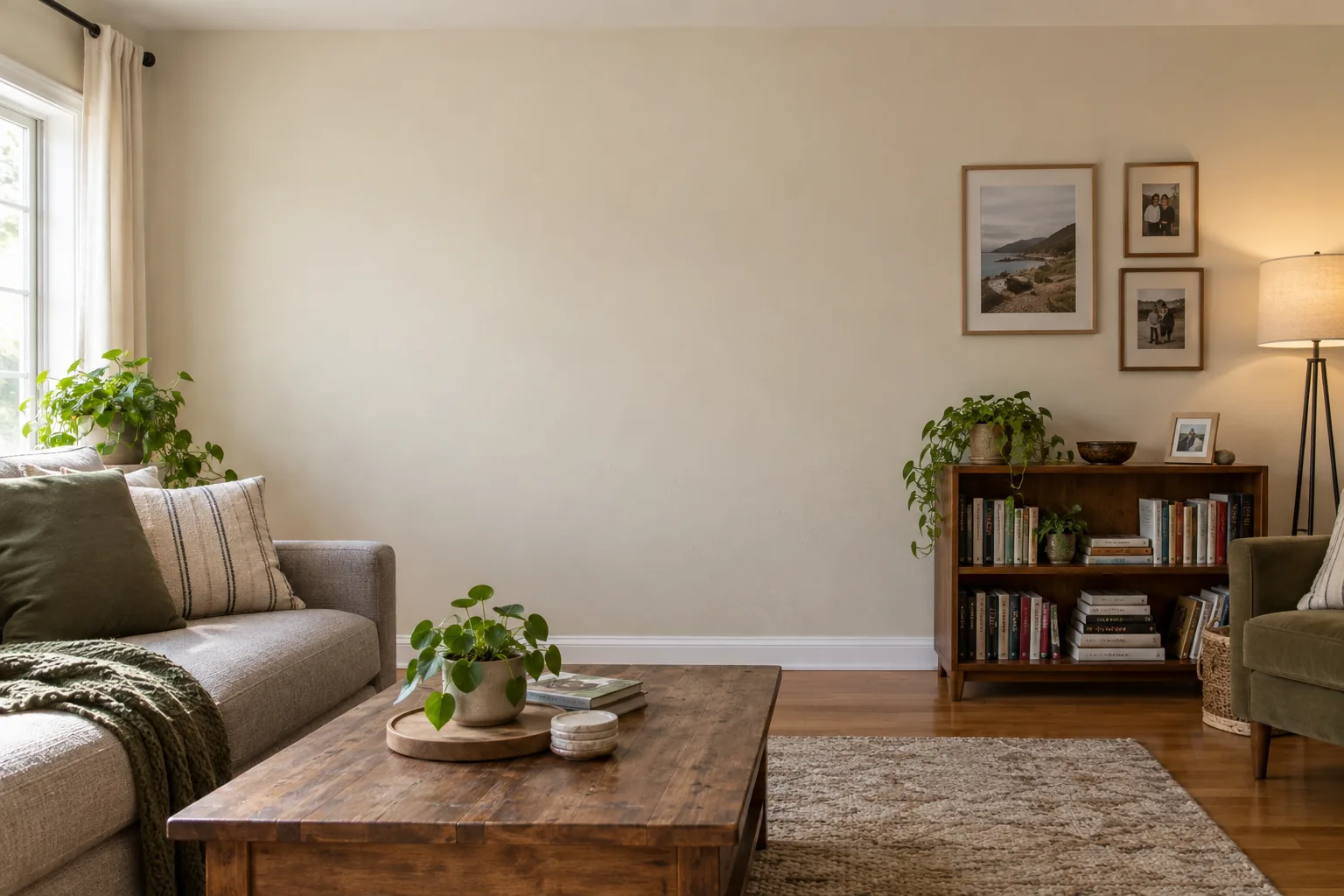
Clavier : placez le focus sur l’image, déplacez le repère avec les flèches (Maj pour de plus grands pas), ajoutez un coin avec Espace, fermez avec Entrée et annulez avec Échap.
Zones marquées sur la photo : 1
#93A18B
Importez votre photo et confirmez la zone à modifier pour générer une proposition de couleur. Comparez le résultat à l’original : certains détails peuvent changer.
Connectez-vous pour générer un aperçuL’aperçu permet de comparer des idées sur une même photo. La lumière, la texture et l’écran influencent la couleur : testez un échantillon réel sur le support avant d’acheter.
Explorez peinture, enduit à la chaux, papier peint, tasseaux et textures murales sur une photo.
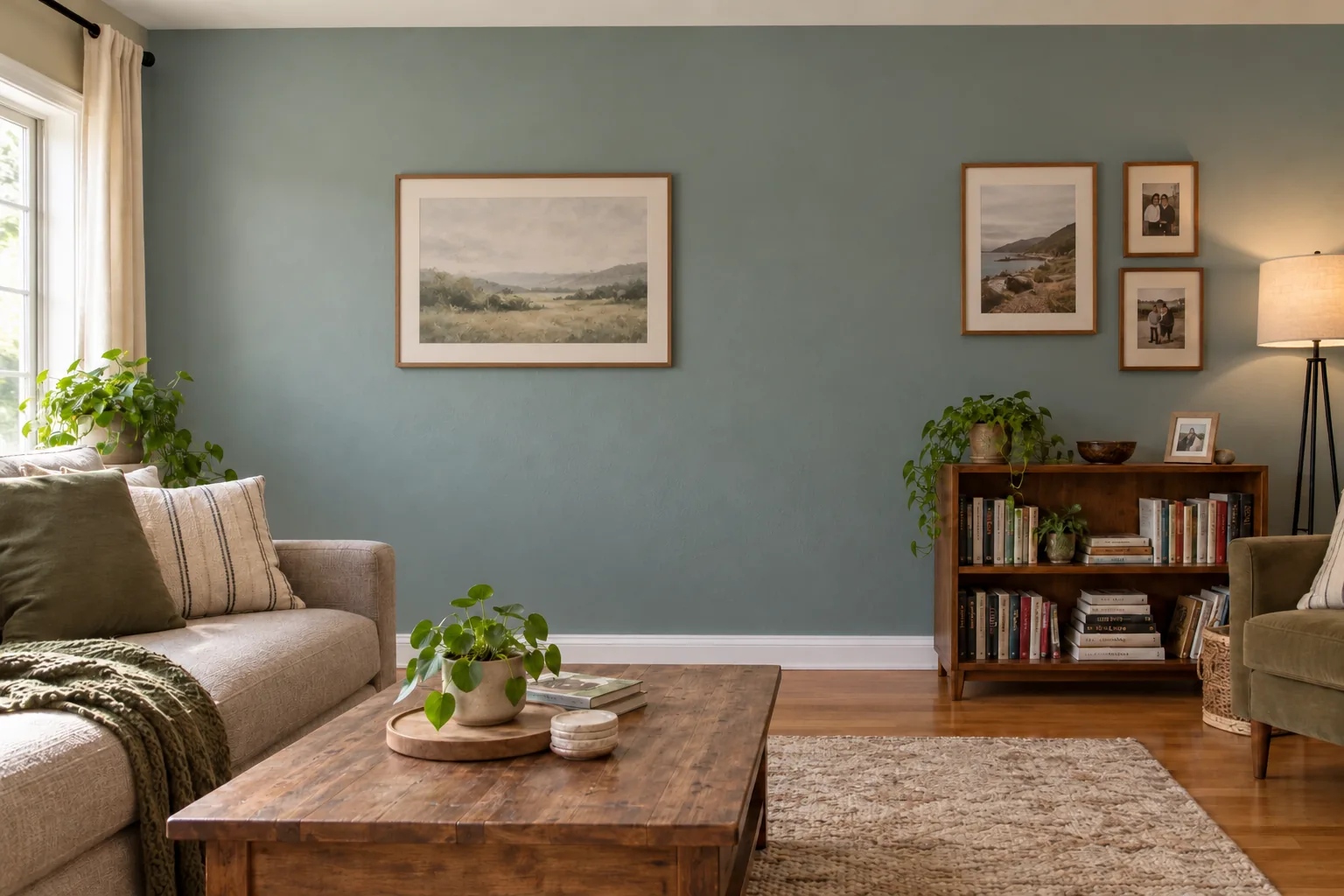
Voir un exemple avant d’importer une photo
Découvrez un exemple avant-après préparé pour cet outil. Sa consultation est immédiate et n’utilise pas de crédits.
Se connecter pour générer et enregistrer votre création.
Se connecter pour générer et enregistrer votre création.
Use an evenly lit photo showing the target wall and nearby furnishings. Strong shadows can make finish comparisons harder.
Name the wall to change and specify paint, limewash, wallpaper, or wood slats. Ask to retain trim or openings when needed; confirm actual colors with samples.
Choose a style, add your requirements, then generate. Compare the result with the original photo, especially openings and furniture placement. Adjust one requirement at a time before generating another version.
Digital redesigns provide layout and aesthetic direction. For construction or contractor orders, verify room dimensions on-site and confirm physical material swatches under your home's lighting.
Check the credit cost shown before generating. You can view examples without spending credits.
See examples and explore this tool’s usesThis example shows a wall and material direction you can explore with the Wall & Paint tool. Upload your own room photo to create a concept around your space.
Curated interior color rendering. Lighting temperature (2700K warm vs. 4000K neutral) affects appearance; test physical paint swatches in your space.
Describe a color family, mood, or contrast for a main wall. Mention nearby trim and furniture you want to keep in view.
Explore a softer, layered wall finish. Include the room lighting and surfaces that should remain unchanged in your request.
Try a feature wall with wallpaper or wood slats. Identify the wall and ask to preserve doors, windows, and trim.
Studio is for exploring a visual direction. Browse real brand colors, compare a selected shade on a photo, or find close paint matches before choosing a physical sample.
Studio explores overall space aesthetics and lighting harmony. For paint purchases, map your favorite shade to standard brand swatches and test a liquid sample pot on your wall.
Describe the target wall and list the trim, openings, furniture, and other details to retain. Review the generated image against your original photo, since an AI concept may still vary other details.
Select a curated shade from our paint visualizer and preview it directly onto marked surfaces in your room photo. For the most accurate finish, compare your favorite digital shades with physical color chips under natural daylight.